
Why is the time on my computer wrong?
Your computer is supposed to check with time servers regularly so that the time displayed by the computer is correct. This doesn’t always happen.

One morning I was listening to NPR News and noticed the 8 o’clock top-of-hour newscast started a bit after 8:01:30 according to my computer. Obviously, that couldn’t be right.
Where does time come from?
The first personal computers had no network connections, so they couldn’t connect to time servers. By 1985 all computers on a local network could by synchronized, more or less. Networks were too slow for precision, but all computers would show the same time, give or take a second or so. Even ARPANET, the forerunner of the internet, didn’t have time servers initially.
To manage time synchronization on the ARPANET, David Mills created the Network Time Protocol (NTP); by 1998 both the protocol and network speeds had improved to the point that device clocks could be synchronized within tens of milliseconds. Today the technology is accurate to 200 microseconds.
Precise synchronization is essential for communications satellites and important for more mundane matters such as those used by radio and television broadcast networks.
Radio and television stations once had Western Union clocks, but they were wildly inaccurate. They could be off by 5 or 10 seconds in just an hour, so Western Union sent a sync pulse exactly on the hour. The trouble with that is the person who was backtiming something to a network program might find that the clock suddenly took 10 seconds away or gave them an extra 10 seconds. That may be why most networks sent an alert tone 10 seconds before the transmission began.
This imprecision is laughable by today’s standards because any procedure that requires precise time will get it from a time server. Or from another antique service that was initiated in 1920 and is still operational: The National Institute of Standards and Technology’s (NIST) broadcast time signals on short wave.
Microsoft offers time servers, and this is the default for Windows computers, but there are also time servers from the NTP Pool (a virtual cluster of time servers), Cloudflare, Google, and NIST.
There are two paths from here:
For those who want the time their computer displays to be approximately correct most of the time.
For those who want or need the time on their computer to be absolutely accurate nearly all of the time.
(1) Reasonably accurate most of the time
You shouldn’t have to do anything to achieve this result. That’s why I was puzzled when I found my primary computer’s time was inaccurate by more than 90 seconds.
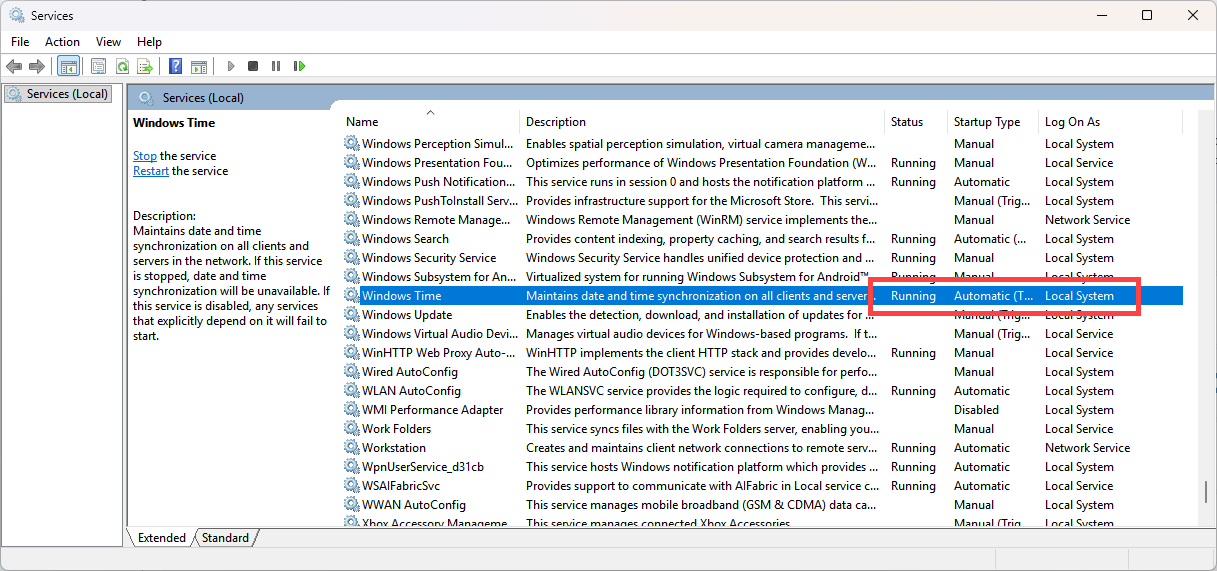
What I found explained the reason. Opening the Services app (Start Button > type “Services” > Select the Services app), scroll down to Windows Time. The service should be running, set to start automatically, and logging on as local system. In my case, it was stopped, disabled, and set to my account.
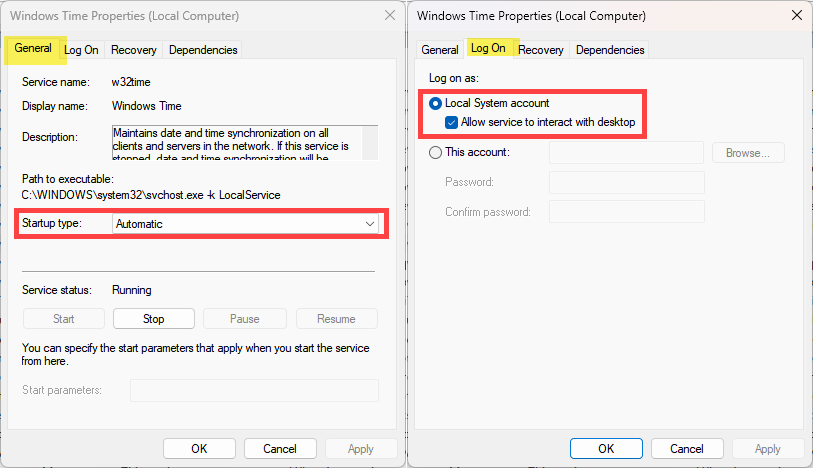
If the settings are wrong, double-click the Windows Time entry to open the General tab and change the startup type to “Automatic” or “Automatic (delayed)”. Then open the LogOn tab and choose both “Local system account” and “Allow service to interact with desktop”. Return to the General tab. If the service was running, stop it and restart it; if it was stopped, start it.
That should be all you need to do unless you want to change the time server or the interval between time checks. These are covered in the next section.
(2) Absolute accuracy almost all the time
If you’re a real stickler for accuracy, start by performing the basic steps from the previous section, then consider whether you want to use a different time server. In most cases, Microsoft’s server (time.windows.com) is fine but you may prefer another server that’s closer to your location. Also, you may want to specify multiple time servers or schedule synchronization to occur more frequently than the default.
The default polling interval is 1 hour (3600 seconds) on domain‑joined PCs and 24 hours (86,400 seconds) on stand‑alone Windows computers.
Add additional servers
Servers can be added using the Registry Editor, Group Policy Editor, or command line. I’ll describe the process with the Registry Editor because not all computers have the Group Policy Editor option and the command line can be intimidating.
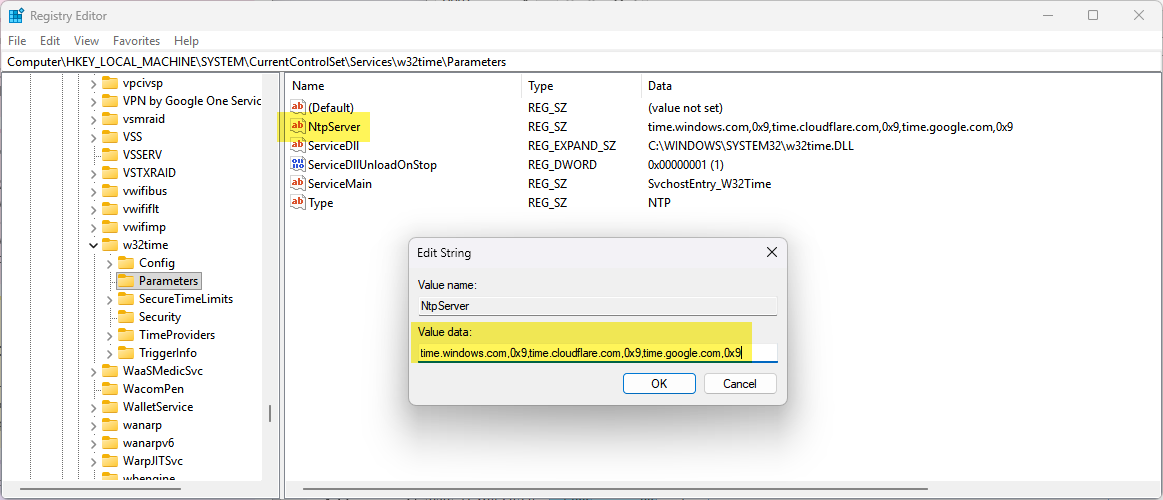
Start by opening the Registry Editor (Windows key + R, type “regedit”, and press Enter.
Navigate to HKEY_LOCAL_MACHINE\SYSTEM\CurrentControlSet\
Services\W32Time\Parameters.
Double-click the NtpServer value. In the “Value data” field, enter a comma-separated list of time servers, ending each in 0x9. To maintain Microsoft’s time server and also check Cloudflare’s and Google’s time servers:time.windows.com,0x9,time.cloudflare.com,0x9,time.google.com,0x9
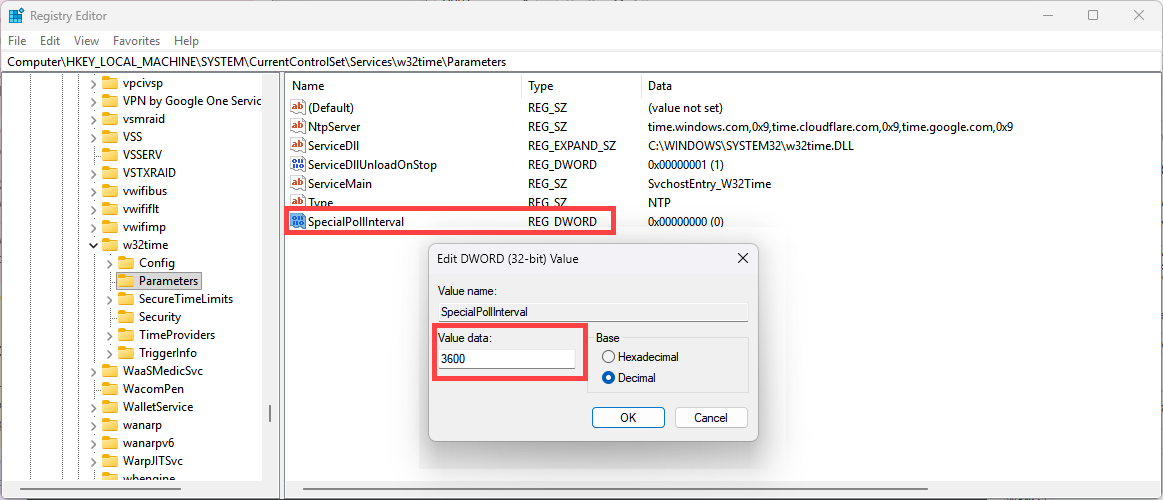
To change the default polling interval for a non-domain computer, create a new DWORD (32‑bit unsigned integer) registry value called “SpecialPollInterval” and enter the number of seconds between polling intervals. I have used 3600 seconds (one hour). The shortest possible interval is 300 (5 minutes).
Stop and restart the service or reboot the computer.
Commonly used time servers
Microsoft: time.microsoft.com
Cloudflare: time.cloudflare.com
Google: time.google.com
NIST Internet Time Service: time.nist.gov
US Naval Observatory: time.navy.mil
NTP Pool: See NTP Pool Project for details.